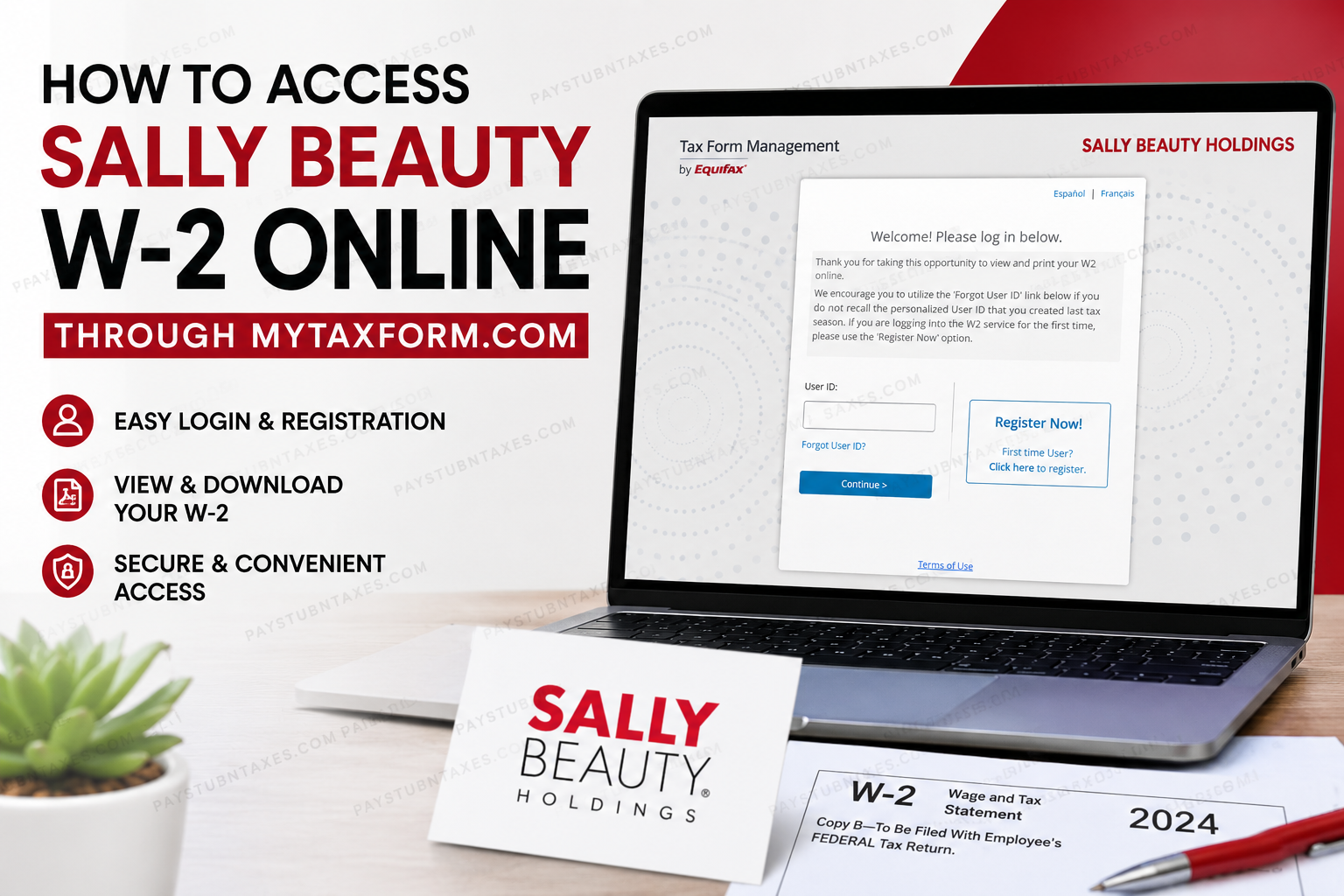
Employees and former employees of Sally Beauty Holdings can conveniently access their W-2 tax forms online through the Tax Form Management portal powered by Equifax. While many Sally Beauty entities have already transitioned to ADP, some divisions and subsidiaries still use the Equifax Tax Form Management platform for tax document delivery and historical W-2 access. If you are unsure which system your company currently uses, log in to the HUB where you normally access your pay stubs. The left-hand announcements section typically contains instructions regarding your tax form provider and whether your W-2 is available through ADP or Equifax Tax Form Management. This complete guide explains how to log in, register, download your W-2, consent to paperless delivery, and troubleshoot common login issues.
About Sally Beauty Holdings
Sally Beauty Holdings is one of the world’s largest distributors and retailers of professional beauty products. The company operates thousands of stores across the United States, Puerto Rico, Canada, Mexico, the United Kingdom, Belgium, Chile, France, Ireland, Germany, and the Netherlands.
Its two major operating segments include:
- Sally Beauty Supply — serving both retail consumers and salon professionals
- Beauty Systems Group (BSG) — operating professional-only stores such as CosmoProf and Armstrong McCall
The company offers thousands of professional beauty products covering hair care, skincare, nails, and salon supplies.
Sally Beauty W-2 Online Access Information
Tax Form Portal
Company Code: 11140
Portal Purpose
The Tax Form Management portal allows employees to:
- View and download W-2 forms
- Access historical tax documents
- Receive tax forms electronically
- Update account information
- Print or save tax documents securely
How to Access Sally Beauty W-2 Online
Follow these simple steps to retrieve your W-2 form online.
Step 1: Visit the Tax Form Management Website
Go to: Tax Form Management Portal
Enter the Sally Beauty company code: 11140
After entering the code, you will be redirected to the Sally Beauty Holdings Employment Services login page.
Step 2: Sign In or Register
You will see two options:
- Returning User Login
- First-Time User Registration
Returning Users
If you have previously created credentials:
- Enter your User ID
- Click Continue
- Enter your password
- Complete any identity verification steps if prompted
The system may occasionally request additional authentication for security purposes.
First-Time Users
If this is your first time accessing the portal:
- Click Register Now
- Enter your personal identification information
- Verify your identity
- Create your personalized User ID and password
- Complete account authentication
The platform may send a one-time passcode (OTP) to your registered phone number or email address during verification.
Step 3: Access Your W-2 Form
Once logged in:
- Navigate to the homepage
- Locate your available tax forms
- Select the desired W-2 form
- Choose one of the following options:
- View
- Download
- Fax
The system allows you to instantly save a digital copy of your W-2 for tax filing purposes.
How to Enroll in Online W-2 Delivery
Electronic delivery is the fastest and most secure way to receive your tax documents.
To consent to online delivery:
- Log in to Tax Form Management
- Locate the Online Delivery Consent section
- Check the box beside the W-2 form option
- Select Receive Forms Online
- Accept the disclosure agreement
- Confirm your email and mailing address
- Submit your consent
After confirmation, future tax forms will be delivered electronically instead of by paper mail.
How to Recover Your Account
If you forgot your User ID or password:
- Select Forgot User ID? or password recovery
- Complete identity verification
- Receive a one-time passcode
- Reset your login credentials
Employees who cannot complete verification online may need to contact employer support for additional assistance.
How to Update Personal Information
To update your profile details:
- Log in to your account
- Click My Account
- Select the edit icon
- Update your:
- Email address
- Phone number
- Mailing address
- Security settings
Keeping your contact information updated helps ensure smooth W-2 delivery and account recovery.
Common Issues When Accessing Sally Beauty W-2 Online
Incorrect Company Code
Ensure you are entering: 11140
An incorrect company code will prevent access to the Sally Beauty login page.
Portal Transition Confusion
Some Sally Beauty divisions now use ADP instead of Equifax Tax Form Management. Check the HUB announcements section for the latest instructions.
Authentication Problems
The portal may require:
- Multi-factor authentication
- One-time passcodes
- Identity verification questions
These security measures help protect sensitive tax information.
Former Employees
Former employees can often still access historical W-2 forms through the Tax Form Management system even after leaving the company.
Benefits of Accessing Sally Beauty W-2 Online
Using the online portal offers several advantages:
- Faster tax form delivery
- 24/7 secure access
- Instant downloads
- Reduced paper clutter
- Easy historical record retrieval
- Convenient printing for tax filing
Final Thoughts
Accessing your Sally Beauty W2 online through MyTaxForm.com is a secure and efficient process for eligible employees and former employees. Whether you need your latest W-2 or historical tax forms, the Equifax Tax Form Management portal provides convenient online access, downloadable PDFs, and paperless delivery options. Before logging in, remember to confirm whether your employer entity still uses the Equifax platform or has transitioned to ADP payroll services. With your company code, login credentials, and identity verification information ready, retrieving your Sally Beauty tax documents takes only a few minutes.
Frequently Asked Questions (FAQs)
1. What is the Sally Beauty company code for mytaxform.com?
The company code is 11140.
2. Can former employees access Sally Beauty W-2 forms online?
Yes. Many former employees can still retrieve historical W-2 forms through the portal.
3. What website does Sally Beauty use for W-2 access?
Eligible entities use: mytaxform.com
4. Does Sally Beauty use ADP or Equifax?
Some Sally Beauty companies use ADP, while others continue using Equifax Tax Form Management.
5. How do I know which system my company uses?
Check the HUB announcements section where your payroll and tax form instructions are posted.
6. Can I receive my W-2 electronically?
Yes. You can consent to online delivery directly within the portal.
7. What if I forgot my login credentials?
Use the account recovery options available on the login page.
8. Can I print my W-2 from the portal?
Yes. The portal allows you to view, download, and print your tax forms.
9. Is the Tax Form Management portal secure?
Yes. The platform uses authentication and verification processes to protect your information.
10. What should I do if I cannot verify my identity?
You may need to contact Sally Beauty HR or payroll support for assistance.
11. Can I update my address online?
Yes. You can update your personal information under the My Account section.
12. Will I still receive a paper W-2 if I enroll online?
Once you consent to electronic delivery, your tax forms are generally delivered digitally instead of by mail.
13. Can I access older W-2 forms?
Yes. Historical W-2 forms are often available within the system.
14. What happens if my OTP code does not arrive?
Wait a few minutes and verify your registered contact information before requesting another code.
15. Is mytaxform.com available 24/7?
Yes. The portal is generally accessible anytime for eligible users.
