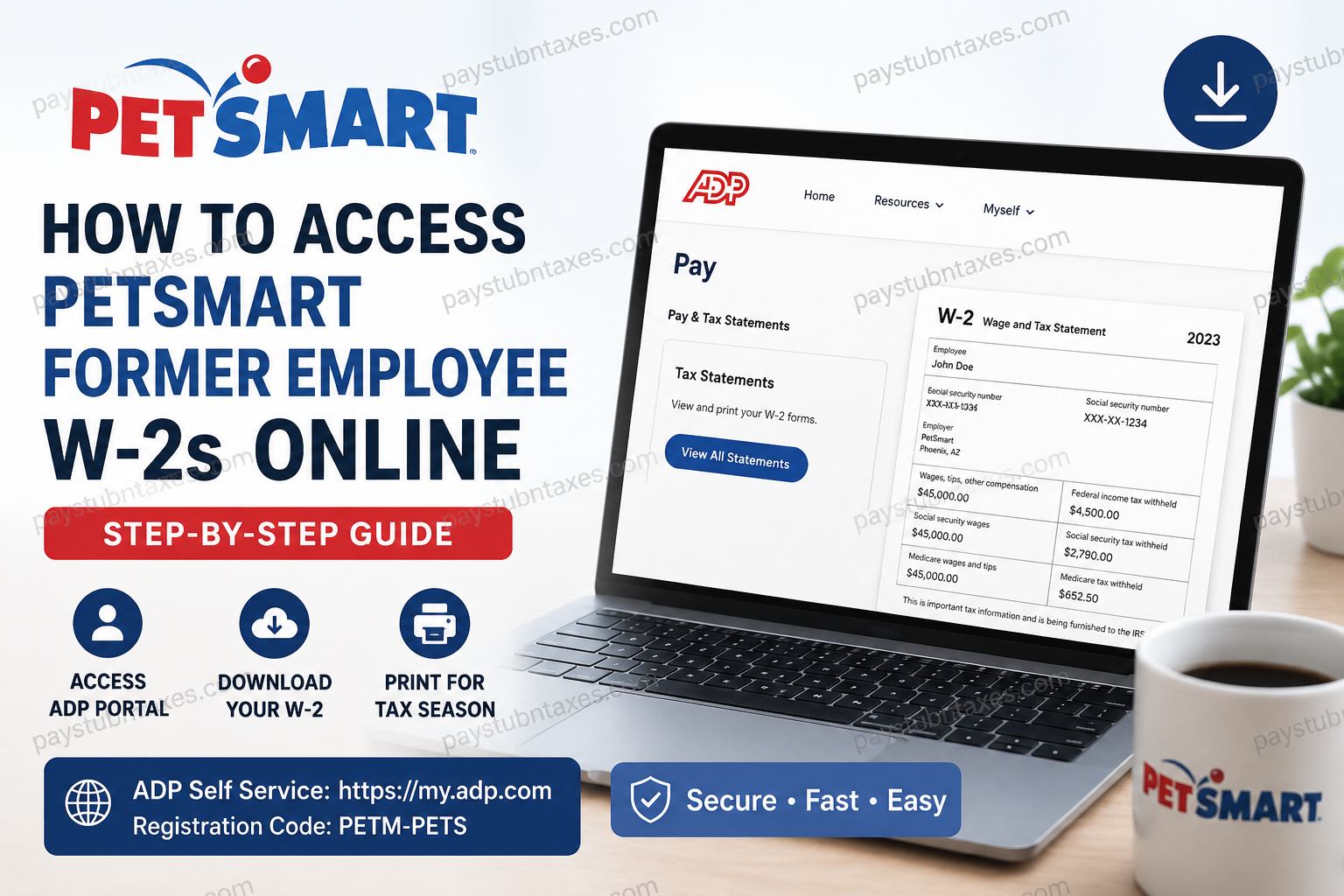
Former employees often discover, usually at the eleventh hour of tax season, that they no longer have access to their company email address or internal employee portal. Fortunately, PetSmart has simplified the process of obtaining payroll and tax records by providing former associates with access to their tax documents through the ADP Self-Service Portal. Whether you recently left PetSmart or separated from the company years ago, this guide explains exactly how to access, download, and print your W-2 forms online.
About PetSmart
Founded in 1986 and headquartered in Phoenix, Arizona, PetSmart has grown into the largest specialty pet retailer in North America, operating more than 1,660 stores and employing approximately 50,000 associates across the United States and Canada. Beyond retail, the company is renowned for its commitment to animal welfare, having helped millions of pets find forever homes through PetSmart Charities.
As an employer, PetSmart leverages modern HR technology to provide associates with secure access to payroll information, tax statements, and employment documents.
Can Former PetSmart Employees Access Their W-2 Online?
Yes. Former PetSmart employees can still retrieve their W-2 forms electronically through the ADP Self-Service Portal, even after their Single Sign-On (SSO) access to HR Connect has been deactivated.
Current employees generally access ADP through the HR Connect portal. However, once employment ends, access to HR Connect is revoked, and former associates must log in directly through ADP.
PetSmart Former Employee W-2 Portal Information
| Service | Details |
| Payroll Provider | ADP Workforce Now |
| ADP Self-Service Website | https://my.adp.com |
| Registration Code | PETM-PETS |
| Support Phone Number | 1-866-263-8411 |
| HR Email | hrsharedservices@petsmart.com |
How to Register for an ADP Account
If you have never used ADP outside of the PetSmart network, you may need to create your account first.
Step 1: Visit the ADP Website
Go to: https://my.adp.com
Click Get Started.
Step 2: Select Registration Option
Choose: I Have a Registration Code
Step 3: Enter PetSmart’s Registration Code
PETM-PETS
Step 4: Verify Your Identity
ADP may ask for information such as:
- First and last name
- Social Security Number
- Employee ID
- Date of birth
- Year of your W-2
- Mobile phone number or email address for verification
Step 5: Create Login Credentials
Set up:
- User ID
- Password
- Security authentication options
- Recovery email and phone number
Once registration is complete, your ADP account is ready for use.
How to Access Your PetSmart W-2 Online
After signing in to ADP, follow these steps:
Step 1: Log in to your ADP account.
Step 2: Navigate to: Pay → Pay & Tax Statements
Step 3: Locate the Tax Statements section.
Step 4: Select View All Statements.
Step 5: Choose the appropriate tax year.
Step 6: Click View Statement beside your W-2.
Step 7: Download or print your form for your records.
How to Download and Print Your W-2
After opening your tax statement:
- Click the Download button.
- Save the PDF to your device.
- Select Print if you need a paper copy for tax filing or personal records.
It is advisable to save a digital copy in a secure location, as tax documents are often required for:
- Filing income taxes
- Mortgage applications
- Student financial aid
- Employment verification
- Immigration documentation
Accessing W-2 Forms Through the ADP Mobile App
Former associates may also retrieve tax forms using the ADP Mobile Solutions application.
Steps:
- Download the ADP Mobile app.
- Sign in using your ADP credentials.
- Tap Pay.
- Open Statements & Activity.
- Select View All Statements.
- Choose your W-2 and download the PDF.
The mobile application offers a convenient solution for individuals who no longer have access to a desktop computer.
What If You Forgot Your ADP Username or Password?
ADP provides self-service recovery tools.
To recover your account:
- Visit my.adp.com
- Click Forgot User ID or Forgot Password.
- Complete identity verification.
- Reset your credentials and sign back in.
What If Your W-2 Is Missing?
There may be instances where your tax form is not immediately available.
Common reasons include:
- Your mailing address recently changed.
- Electronic delivery was not previously enabled.
- The tax year selected is incorrect.
- Your account registration is incomplete.
If you cannot locate your W-2, contact PetSmart’s HR Shared Services Team.
Phone: 1-866-263-8411
Email: hrsharedservices@petsmart.com
How Long Are W-2 Forms Available Online?
ADP generally retains payroll and tax records for multiple years, although document retention periods may vary depending on company policies and account settings. Therefore, it is prudent to download and store copies of your tax forms every year for future reference.
Tips for Keeping Your Payroll Records Secure
Because payroll documents contain highly sensitive information, former employees should adopt a few best practices:
- Use a strong, unique password.
- Enable multi-factor authentication when available.
- Avoid accessing payroll information on public Wi-Fi networks.
- Save tax documents in encrypted cloud storage or a password-protected folder.
- Never share your login credentials with anyone.
Final Thoughts
Obtaining your PetSmart W-2 online is remarkably straightforward once you understand where to look. While access to the company’s internal HR systems ends upon separation from employment, ADP continues to provide a secure and convenient gateway to your payroll and tax records. By registering with the PETM-PETS code and following the steps outlined above, former associates can retrieve, download, and print their W-2 forms within minutes, thereby sparing themselves unnecessary stress during tax season and ensuring that important financial documents remain readily accessible whenever needed.
Frequently Asked Questions
1. How do I get my W-2 from PetSmart after quitting?
You can obtain your W-2 by logging into the ADP Self-Service portal at my.adp.com using your ADP credentials.
2. What is PetSmart’s ADP registration code?
The registration code for PetSmart associates is PETM-PETS.
3. Can former PetSmart employees still access ADP?
Yes. Former employees can continue accessing their payroll and tax documents directly through ADP.
4. Does HR Connect work after I leave PetSmart?
No. Access to HR Connect is typically revoked once your employment ends.
5. Where can I download my PetSmart W-2?
You can download it under Pay → Pay & Tax Statements → View All Statements in ADP.
6. When are PetSmart W-2 forms available?
W-2 forms are generally available electronically by the end of January each year.
7. Can I access my PetSmart W-2 on my phone?
Yes. You can use the ADP Mobile Solutions app to view and download your W-2.
8. What if I forgot my ADP password?
Use the Forgot Password link on the ADP login page to reset your credentials.
9. What if I forgot my ADP username?
Select Forgot User ID on the ADP login page and complete identity verification.
10. What should I do if my W-2 is missing?
Contact PetSmart HR Shared Services for assistance with locating your tax document.
11. How do I contact PetSmart payroll?
Call 1-866-263-8411 or email hrsharedservices@petsmart.com.
12. Can I receive a paper copy of my W-2?
Yes. If electronic delivery is unavailable, PetSmart may mail your W-2 to your address on file.
13. How long are W-2 forms available on ADP?
ADP generally stores payroll and tax records for several years, depending on company policies.
14. Can I download previous years’ W-2 forms?
Yes, if those tax statements remain available in your ADP account.
15. Is my Social Security Number required to register for ADP?
ADP may require your Social Security Number and other identifying information to verify your identity during registration.
