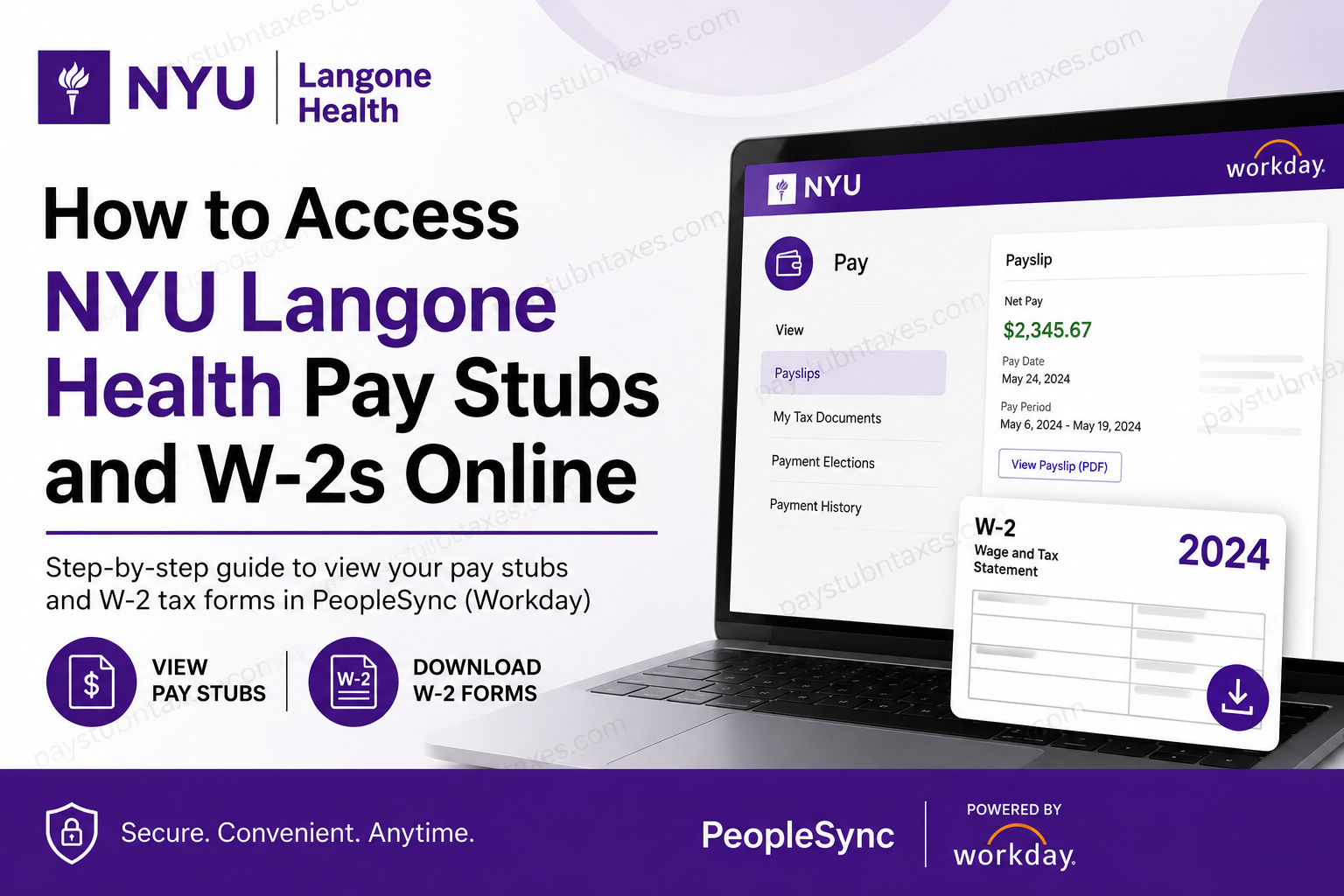
Managing payroll and tax documents should be effortless, especially for employees working within one of the nation’s premier academic health systems. If you are employed by NYU Langone Health, you can conveniently access your pay stubs, tax forms, and payroll information through PeopleSync, powered by Workday, using NYU’s secure Single Sign-On (SSO) authentication. Whether you need your latest paycheck, a previous pay statement, or your annual Form W-2 for tax filing, this guide walks you through every step of the process.
About NYU Langone Health
NYU Langone Health is one of the largest and most respected academic healthcare systems in the United States. Headquartered in New York City, the organization includes:
- NYU Grossman School of Medicine
- NYU Grossman Long Island School of Medicine
- More than 330 healthcare locations
- Seven inpatient hospitals
- Rusk Rehabilitation
- More than 54,000 employees
Recognized nationally for exceptional patient outcomes, research, and medical education, NYU Langone consistently ranks among America’s top academic medical centers.
What Is PeopleSync?
PeopleSync is NYU’s Human Capital Management (HCM) platform powered by Workday. It serves as the central employee self-service portal for HR and payroll functions.
Employees can use PeopleSync to:
- View and download pay stubs
- Access W-2 tax forms
- Update direct deposit
- Review tax withholding elections
- View compensation information
- Manage personal information
- Access benefits and employment records
Current employees authenticate through NYU Login (Single Sign-On), which uses NetID@nyu.edu credentials together with NYU Multi-Factor Authentication (Duo) for enhanced security. The login process requires employees to sign in using their full NetID email address and NYU password.
NYU Langone Health Workday Portal
Workday URL
https://wd503.myworkday.com/nyu/login.flex
Important: Employees should access PeopleSync through the NYU Home portal using NYU Login (Single Sign-On) whenever prompted.
How to Log into NYU PeopleSync
Follow these steps:
Step 1: Open the NYU Workday portal or launch PeopleSync from the NYU Home portal.
Step 2: Select NYU Login (Single Sign-On).
Step 3: Enter your full:
NetID@nyu.edu
Do not use:
- Personal email addresses
- University ID numbers
- Alternate email aliases
The official login requires your complete NetID followed by @nyu.edu.
Step 4: Enter your NYU password.
Step 5: Approve your login request using NYU MFA (Duo).
Step 6: After successful authentication, you’ll be redirected into PeopleSync.
How to View NYU Langone Pay Stubs
Once logged in:
- Open PeopleSync (Workday).
- Select the Pay application.
- Click Payslips.
- Choose the desired payroll period.
- Open the PDF version of your payslip.
- Download, print, or save it for your records.
Workday stores electronic payslips, allowing employees to retrieve previous payroll statements whenever needed.
How to Download Your NYU W-2 Online
Employees can retrieve electronic W-2 forms directly from PeopleSync.
Step 1: Log into PeopleSync.
Step 2: Open the Pay application.
Step 3: Select: My Tax Documents
Step 4: Locate your desired tax year.
Step 5: Click: View/Print
Step 6: The request will be processed for a few moments.
Step 7: Your electronic W-2 opens as a PDF that can be:
- Saved
- Downloaded
- Printed
Employees may also choose Notify Me Later, allowing PeopleSync to send a notification once the W-2 becomes available in My Reports.
How to Receive Your W-2 Electronically
To eliminate paper copies:
- Sign in to PeopleSync.
- Open Pay.
- Select My Tax Documents.
- Under Printing Elections, choose Edit.
- Select Receive electronic copy of my Year-End Tax Documents.
- Save your changes.
Once enabled, you’ll receive an email notification when your electronic W-2 becomes available.
Security Tips for NYU Login
Because payroll records contain highly sensitive information, NYU strongly recommends:
- Always verify you’re using the official NYU login page.
- The authentic login address begins with login.microsoftonline.com.
- Use your complete NetID@nyu.edu username.
- Never share your password.
- Always approve MFA requests only when you initiated the login.
- Sign out completely after using a shared or public computer.
These practices help protect your payroll and personal information from phishing attempts and unauthorized access.
Forgot Your Password?
If you cannot access your account:
- Use the Forgotten or expired password option.
- Visit the NYU Start Page to recover your NetID or reset your password.
- Contact the IT Service Desk if login issues persist.
PeopleLink Payroll Support
If you need assistance accessing payroll documents, contact:
PeopleLink
- Phone: 212-992-5465
- Internal ITS: 88888
- Email: askpeoplelink@nyu.edu
- NYU Abu Dhabi: nyuad.peoplelink@nyu.edu
PeopleLink can assist with:
- Login issues
- Payroll questions
- W-2 access
- Tax documents
- Workday navigation
- Employee records
Conclusion
NYU Langone Health has streamlined payroll management by integrating PeopleSync with Workday and NYU Login (Single Sign-On). Employees can securely access pay stubs, W-2 forms, tax documents, and other employment records anytime through a centralized self-service platform. By using your NetID@nyu.edu, completing Duo Multi-Factor Authentication, and navigating to the Pay section, you can quickly retrieve payroll documents, download tax forms, and manage your year-end tax preferences without relying on paper copies. If you encounter any issues, PeopleLink and the NYU IT support team are available to help ensure uninterrupted access to your payroll information.
Frequently Asked Questions
1. How do I access my NYU Langone Health pay stubs online?
Log into PeopleSync through NYU Login (Single Sign-On), complete Duo MFA, open the Pay application, and select Payslips to view or download your pay statements.
2. Where can I find my NYU Langone Health W-2 form?
Your W-2 is available in PeopleSync > Pay > My Tax Documents, where you can open, download, or print your electronic tax form.
3. What login credentials do I need for PeopleSync?
Use your NetID@nyu.edu username along with your NYU password and complete Duo Multi-Factor Authentication.
4. What is PeopleSync?
PeopleSync is NYU’s Workday-powered Human Capital Management (HCM) platform used to manage payroll, tax documents, benefits, and employee records.
5. Can I download my pay stub as a PDF?
Yes. Every available payslip can be opened as a PDF and downloaded or printed for your records.
6. How do I receive my W-2 electronically?
Go to My Tax Documents, edit your Printing Elections, and select Receive electronic copy of my Year End Tax Documents.
7. Is Duo Multi-Factor Authentication required?
Yes. NYU requires Duo MFA to securely access PeopleSync and other NYU online services.
8. What should I do if I forget my NYU password?
Use the Forgotten or expired password option on the NYU Login page or reset your password through the NYU Start Page.
9. Can former employees access their W-2 online?
Former employees may have limited access. If you cannot log in, contact PeopleLink for assistance in obtaining your W-2.
10. Can I access PeopleSync from my mobile device?
Yes. PeopleSync can be accessed securely from supported mobile browsers using your NYU credentials and Duo MFA.
11. Why is my W-2 taking time to open?
After selecting View/Print, the system generates your W-2 PDF, which may take a few minutes before it becomes available.
12. How far back can I view my pay stubs?
Available payroll history depends on your employee record, but previous payslips are generally accessible through the Payslips section in Workday.
13. Who do I contact if I have payroll or Workday issues?
Contact PeopleLink at 212-992-5465, dial the internal ITS number 88888, or email askpeoplelink@nyu.edu for payroll and Workday support.
14. Is my payroll information secure in PeopleSync?
Yes. PeopleSync uses NYU Single Sign-On and Duo Multi-Factor Authentication to help protect employee payroll and personal information.
15. Can I print multiple years of W-2 forms?
Yes. If multiple tax years are available in My Tax Documents, you can download and print each W-2 individually.
