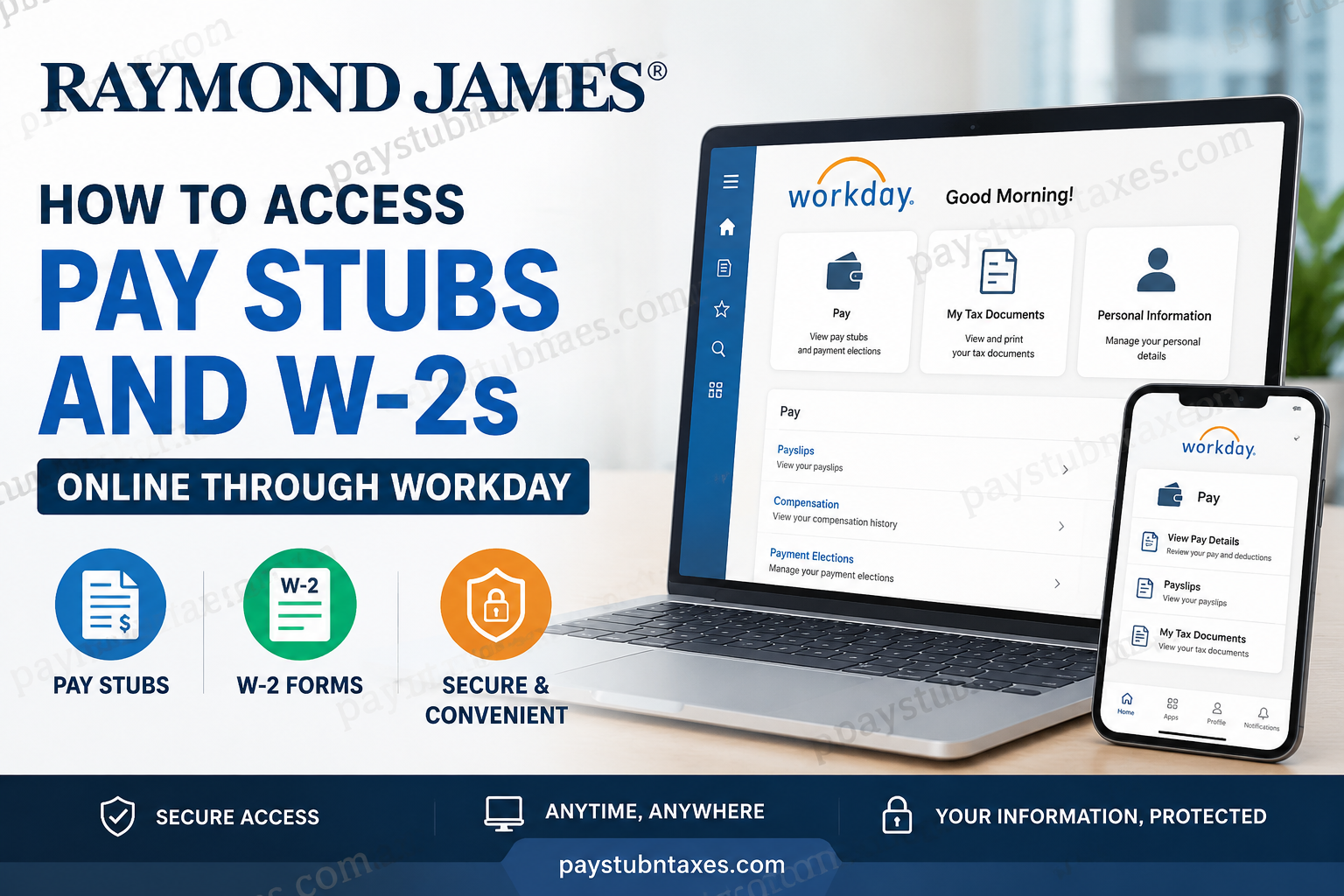
Raymond James Financial, Inc. is one of the most respected independent financial services firms in the United States, renowned for delivering sophisticated wealth management, investment banking, asset management, banking, and financial advisory services to individuals, corporations, and municipalities. Headquartered in St. Petersburg, Florida, the company has cultivated a distinguished reputation since its founding in 1962 and now operates across the United States, Canada, the United Kingdom, and Germany. To enhance payroll accessibility and streamline employee self-service operations, Raymond James utilizes the Workday platform, enabling employees to securely access pay stubs, tax documents, and payroll-related information anytime and from virtually anywhere. Whether you are an active employee or recently separated from the organization, Workday provides a centralized and secure environment for managing your payroll records efficiently. This comprehensive guide explains how to access Raymond James pay stubs and W-2 forms online through Workday and the Workday mobile application.
Raymond James Workday Login Information
Employees can access the Raymond James Workday portal using the following credentials and links:
Workday Login Portal: https://wd1.myworkday.com/raymondjames/
Workday Mobile App Organization ID: raymondjames
Current employees may sign in through the company’s Single Sign-On (SSO) authentication system, while former employees generally access Workday using separate login credentials provided during or after separation from employment.
How to Access Raymond James Pay Stubs Online
Workday allows employees to review current and historical payslips, download PDF copies, and print payroll statements directly from their account.
Access Pay Stubs Through Desktop
Follow these steps to view and print your Raymond James pay stubs online:
Step 1: Log In to Workday
Visit the Raymond James Workday portal and enter your credentials.
Step 2: Open Your Employee Profile
After signing in:
- Click your Profile icon
- Select View Profile
Step 3: Navigate to the Pay Section
Within your employee profile:
- Select Pay
This section contains payroll history, compensation details, and payslip records.
Step 4: Open the Payslips Tab
Inside the Pay section:
- Click the Payslips tab
- Review the complete list of available payroll statements
Step 5: View, Download, or Print Payslips
You may now:
- Select View to open a payslip
- Choose Print to print the document
- Download the payslip as a PDF
- Export payroll information to Excel when available
Step 6: Print Multiple Payslips (Optional)
If enabled by the organization:
- Select Print Multiple Payslips
- Enter the desired payment date range
- Choose the pay statements you want to include
- Download or print the generated report
How to Access Raymond James Pay Stubs Using the Workday Mobile App
Employees who prefer mobile access may use the Workday app to review payroll details conveniently from their smartphone or tablet.
Step-by-Step Mobile Instructions
Step 1: Open the Workday App
Install the Workday mobile application from the Apple App Store or Google Play Store.
When prompted for the organization ID, enter:
raymondjames
Step 2: Sign In
Log in using your Raymond James Workday credentials.
Step 3: Open the Pay Worklet
Inside the app:
- Tap the Apps tab
- Select the Pay worklet
Alternatively, tap the View Payslips shortcut displayed on the home screen.
Step 4: Review Pay Details
To examine detailed payroll information:
- Tap View Pay Details
Employees can then review:
- Gross pay
- Net pay
- Taxes and deductions
- Hours worked
- PTO and holiday pay
- Shift differentials where applicable
Important Payroll Accuracy Note
The initial hours summary displayed on the mobile overview screen may not always include PTO, holiday hours, or certain benefit categories. For accurate payroll details, employees should open the detailed earnings breakdown within the payslip itself.
How to Access Raymond James W-2 Forms Online
Workday also provides secure access to year-end tax documents, including W-2 forms.
Step-by-Step Instructions
Step 1: Log In to Workday
Access your Workday account using your Raymond James login credentials.
Step 2: Open the Pay Dashboard
From the Workday homepage:
- Select the Pay dashboard
Step 3: Open My Tax Documents
Within the Pay dashboard:
- Click My Tax Documents
Step 4: Locate Your W-2 Form
Your available W-2 forms will appear under the My Tax Documents section.
You may view:
- Tax year
- Issue date
- Employee copy
- Federal copy
- State and local copies where applicable
Step 5: View or Print the W-2
Select the View/Print button to open the document.
Once opened, you can:
- Print the W-2 using the printer icon
- Download the form as a PDF
- Navigate between pages using the arrow controls
Step 6: Access the Accessible Version (Optional)
Employees requiring enhanced accessibility features may select the Accessible Form option for improved readability and compatibility with assistive technologies.
First-Time Workday Login Instructions
Employees signing in to Workday for the first time may need to complete an authentication setup process.
Requirements Before You Begin
Prepare the following:
- Your Workday username
- Temporary password
- Smartphone or tablet with internet access
- Microsoft Authenticator or Google Authenticator app installed
Set Up Multi-Factor Authentication (MFA)
After logging in for the first time:
- Create a new secure password
- Open the Authenticator app
- Scan the QR code provided by Workday
- Or manually enter the setup key if scanning is unavailable
- Use the generated six-digit verification code to complete setup
Once configured, future logins will require:
- Your Workday password
- Authentication code from the Authenticator app
This additional security layer helps protect sensitive payroll and tax information.
Raymond James SSO Login Security
Raymond James utilizes a secure sign-on environment that may require:
- Security keys
- RSA token authentication
- Multi-factor authentication protocols
These security measures are designed to safeguard employee payroll and tax data from unauthorized access.
Common Workday Access Issues and Solutions
Forgot Password
If you cannot remember your password:
- Use the password reset option on the login page
- Contact your local HR or payroll administrator if necessary
Locked Account
Multiple unsuccessful login attempts may temporarily lock your account. Wait several minutes before retrying or contact support.
Authenticator App Problems
If you lose access to your authentication device:
- Contact Raymond James technical support or HR
- Request MFA reset assistance
Missing W-2 or Payslip
If documents are unavailable:
- Confirm you are logged into the correct Workday account
- Ensure payroll processing for the relevant period has been completed
- Contact payroll support for assistance
Benefits of Using Workday for Payroll Access
Raymond James employees benefit from Workday’s secure and user-friendly payroll environment, including:
- 24/7 online access to pay stubs and W-2 forms
- Mobile payroll access through the Workday app
- Secure document storage
- Instant PDF downloads
- Multi-factor authentication security
- Easy access to historical payroll records
- Environmentally friendly paperless payroll management
Final Thoughts
Raymond James continues to modernize employee payroll services through the Workday platform, providing secure, efficient, and highly accessible tools for managing pay stubs and W-2 tax documents online. Whether accessing payroll information through desktop or mobile devices, employees can conveniently retrieve important records within minutes while benefiting from enterprise-grade security protections. For additional payroll assistance, employees should contact their local Raymond James office or internal HR support team.
Frequently Asked Questions
1. How do I access my Raymond James pay stubs online?
You can access your Raymond James pay stubs by logging into Workday at:
https://wd1.myworkday.com/raymondjames
After logging in:
- Open your employee profile
- Select Pay
- Open the Payslips tab
- View, download, or print your pay statements
2. How do I get my Raymond James W-2 online?
Log in to Workday and navigate to:
Pay → My Tax Documents
From there, you can:
- View your W-2 form
- Download a PDF copy
- Print your tax documents
3. What is the Raymond James Workday organization ID?
The Raymond James Workday mobile app organization ID is: raymondjames
4. Can former employees access Raymond James W-2 forms?
Yes. Former employees may still access Workday using separate login credentials provided after separation from employment.
5. Is the Raymond James Workday portal secure?
Yes. Raymond James uses advanced security protocols including:
- Multi-factor authentication (MFA)
- RSA token authentication
- Secure login verification
These protections help safeguard employee payroll and tax information.
6. How do I download my Raymond James pay stub as a PDF?
Inside the Payslips section:
- Open the desired payslip
- Select View
- Click the Download icon to save the payslip as a PDF
7. Can I print multiple pay stubs at once in Workday?
Yes. If enabled by the organization, employees can select Print Multiple Payslips and generate a payroll report for a selected date range.
8. How do I access Raymond James payroll information on my phone?
Install the Workday mobile app from the App Store or Google Play Store and enter:
raymondjames
as the organization ID during setup.
9. Why are my hours incorrect on the mobile payslip overview?
The initial mobile summary may not include:
- PTO hours
- Holiday pay
- Certain earnings categories
Open View Pay Details for the complete and accurate payroll breakdown.
10. What should I do if I forgot my Workday password?
Use the password reset option on the Workday login page or contact your HR/payroll administrator for assistance.
11. How do I set up Workday authentication for the first time?
During first-time login:
- Create a new password
- Install Microsoft Authenticator or Google Authenticator
- Scan the QR code provided by Workday
- Enter the verification code to complete MFA setup
12. Can I access old W-2 forms in Workday?
Yes. Historical W-2 forms are generally stored under My Tax Documents within Workday.
13. What devices support Raymond James Workday access?
Workday supports:
- Desktop computers
- Laptops
- iPhones and iPads
- Android smartphones and tablets
14. Why can’t I log in to Raymond James Workday?
Common reasons include:
- Incorrect password
- Expired credentials
- MFA verification failure
- Locked account after multiple login attempts
Contact internal support if the issue persists.
15. Who should I contact for Raymond James payroll support?
For payroll assistance, employees should contact:
- Their local Raymond James office
- Human Resources department
- Payroll or IT support team
These departments can help with login issues, tax forms, and payroll document access.
