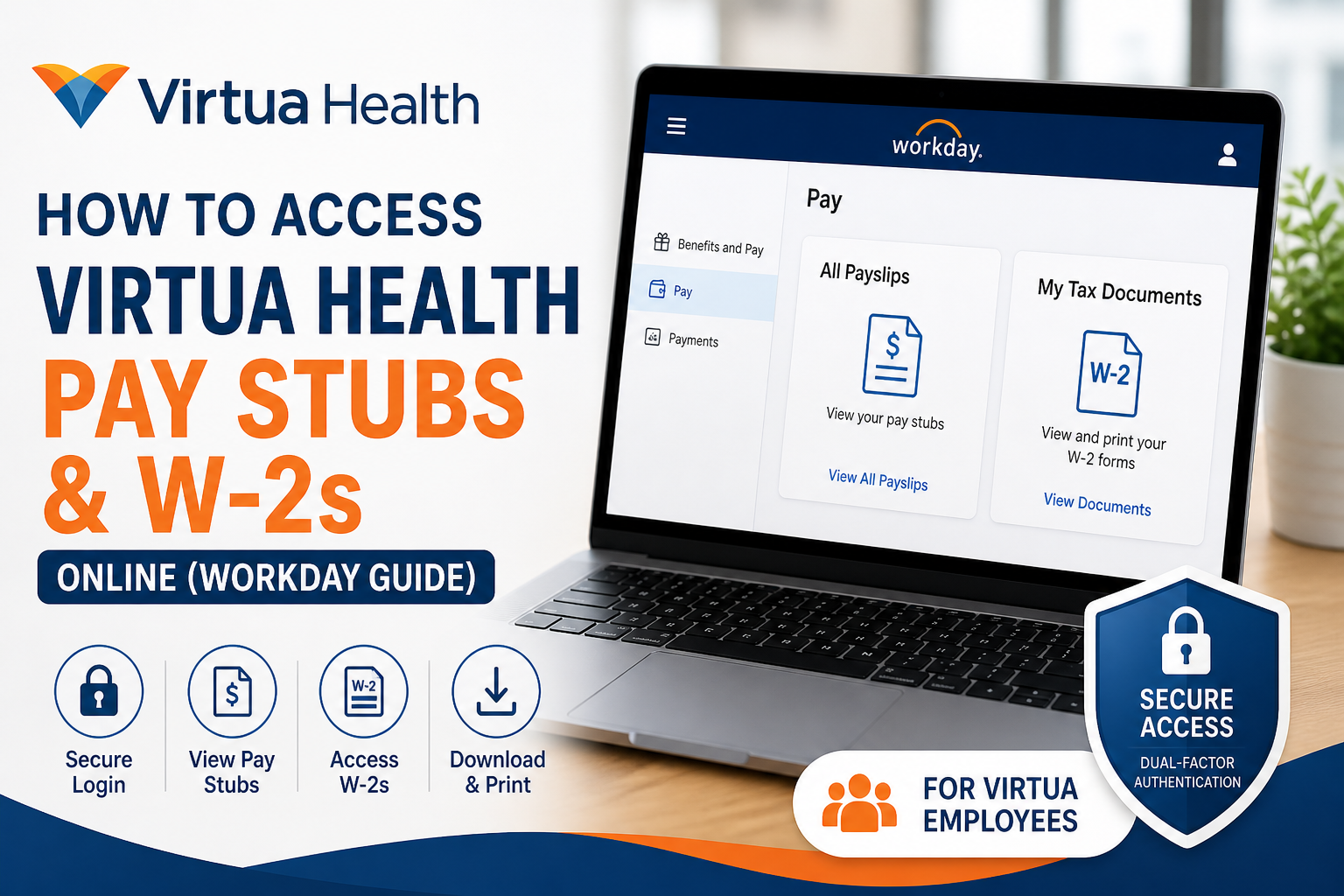
Virtua Health, South Jersey’s largest not-for-profit health system, empowers its workforce of over 14,000 employees with a robust digital infrastructure. Through the Workday self-service portal, employees can conveniently access payroll records, including pay stubs and W-2 tax forms, anytime and anywhere. This comprehensive guide explains how to securely log in, navigate Workday, and retrieve your financial documents with ease.
🔐 Accessing the Virtua Workday Portal
To begin, visit the official Workday login page:
👉 https://www.myworkday.com/virtua/d/home.htmld
Virtua uses dual-factor authentication (DFA) for enhanced security. This means you will need:
- Your Virtua network username and password
- A secondary verification method (e.g., Microsoft Authenticator)
According to Virtua’s employee portal, multi-factor authentication requires entering your password and confirming login via a mobile verification method for secure access.
💼 How to View and Download Virtua Pay Stubs
Once logged into Workday, follow these steps:
Step-by-Step Instructions:
- Click the Menu (top-left corner of the homepage).
- Select Benefits and Pay.
- Click Pay from the left-hand navigation panel.
- Choose Payments.
- Scroll to the All Payslips section.
- Click View to open a specific payslip.
- Click Print to download or print your pay stub.
You can also:
- Click “View All Payslips” to see your full payment history
- Use “Print Multiple Payslips” to download several payslips at once by selecting a date range
👉 Each payslip includes detailed breakdowns of:
- Gross and net pay
- Tax deductions
- Benefits and other withholdings
🧾 How to Access Virtua W-2 Forms in Workday
Your annual W-2 tax forms are also stored within Workday.
Step-by-Step Instructions:
- Log in to Workday.
- Navigate to the Pay Dashboard.
- Click My Tax Documents.
- Locate your W-2 form under the relevant tax year.
- Click View/Print to open the document.
- Use the download or print icon (top-right corner) to save your W-2.
W-2 forms are typically available once payroll publishes them, and employees are notified via email.
🔁 Remote Access via Virtua Web Portal (Optional)
If you are accessing Workday remotely, Virtua may require connection through its Citrix-based web portal:
- Visit: https://citrix.virtua.org
- Enter your network credentials
- Complete multi-factor authentication
- Accept the system disclaimer to proceed
This ensures secure remote access to internal applications, including Workday.
🔑 Password Reset & Account Recovery
If you cannot access your account:
Reset Your Password:
- Go to: https://passwordreset.microsoftonline.com
- Enter your Virtua email address
- Choose “I forgot my password”
- Verify your identity using Microsoft Authenticator
- Set a new password
After resetting, allow 10–15 minutes for changes to take effect across systems
✅ Key Benefits of Using Workday at Virtua
- 24/7 access to payroll and tax documents
- Secure dual-factor authentication
- Easy download and printing options
- Centralised employee self-service dashboard
- Mobile-friendly interface
⚠️ Troubleshooting Tips
- Ensure your internet connection is stable
- Use updated browsers like Chrome or Edge
- Enable pop-ups for PDF downloads
- Contact Virtua IT support if login issues persist
📝 Final Thoughts
Virtua Health’s Workday platform offers a streamlined, secure, and user-friendly way to manage your payroll records. Whether you need to check your latest pay stub or download your W-2 for tax filing, the process is intuitive and efficient. By following the steps outlined above, you can access your financial documents in minutes—anytime, anywhere.
❓ Frequently Asked Questions (FAQs)
1. How do I log into the Virtua Workday portal?
Visit the official Workday link and log in using your Virtua username and password. You will also need to complete dual-factor authentication.
2. Where can I find my pay stubs in Workday?
Go to Menu → Benefits and Pay → Pay → Payments, then scroll to the All Payslips section to view your pay stubs.
3. Can I download or print my Virtua pay stubs?
Yes, you can click View to open a payslip and then select Print to download or print it as a PDF.
4. How do I access my W-2 form online?
Log in to Workday, open the Pay Dashboard, and select My Tax Documents to find and download your W-2.
5. When are W-2 forms available in Workday?
W-2 forms are typically available after payroll publishes them, and employees are notified via email.
6. What should I do if I forget my Workday password?
Use the Microsoft password reset portal, verify your identity, and create a new password. Wait 10–15 minutes for changes to take effect.
7. Is dual-factor authentication required for Workday?
Yes, Virtua requires dual-factor authentication using tools like Microsoft Authenticator for secure access.
8. Can I access Workday from home?
Yes, you can access Workday remotely. In some cases, you may need to log in through the Virtua Citrix portal.
9. What details are included in my pay stub?
Your pay stub includes gross pay, net pay, tax deductions, benefits, and other withholdings.
10. Can I view past pay stubs in Workday?
Yes, click View All Payslips to access your complete pay history.
11. How do I download multiple pay stubs at once?
Use the Print Multiple Payslips option, select a date range, and download them as a single PDF.
12. What if I cannot log into my account?
Ensure your credentials are correct, complete authentication steps, and contact Virtua IT support if the issue persists.
13. Do I need special software to access Workday?
No special software is required, but for remote access, Virtua may require Citrix Workspace installation.
14. Is Workday mobile-friendly?
Yes, Workday can be accessed via mobile browsers and also offers a mobile app for convenience.
15. Are my payroll documents secure in Workday?
Yes, Workday uses advanced security features, including encryption and multi-factor authentication, to protect your data.
